
A virtual photo booth is a web-based tool that lets you and your guests take, customize, and share photos online from any device—no app or hardware required. Try a virtual photo booth in your browser for free, then use it for virtual events, hybrid parties, weddings, or brand activations. This guide covers the best virtual photo booth options for 2026, how they work, and how to avoid common mistakes.
What Is a Virtual Photo Booth?
A virtual photo booth runs in the browser. Guests open a link on their phone or laptop, use their camera to take photos, then add frames, stickers, or filters and download or share the result. No kiosk, no printer, no DSLR—just a link and a device with a camera.
That makes it ideal when people are remote or you want a low-cost, scalable setup. You get the fun of a photo strip or branded shot without the logistics of physical hardware.
Pro Tip:
How a Virtual Photo Booth Works
Guests receive a custom URL (for example from your event page or email). They tap the link, allow camera access, and take one or several shots. The tool then lets them choose a layout—single image, collage, or classic strip—and add branding, stickers, or filters. Finally they download the image or share it to social media or email.
Here's exactly how to do it:
- 1Choose a template on the homepage
Go to the Photobooth Online homepage and open the virtual photo booth. Pick the layout you want guests to use—single image, collage, or classic strip.
- 2Take your photos
Allow camera access and capture your shots. On mobile, the camera usually opens automatically after permission so guests can shoot from their phones.
- 3Customize the look (optional)
Adjust frames, colors, text, or stickers so the output matches your event or brand. Keep the options simple so guests don’t get stuck choosing.
- 4Share or download the result
Download the final image or let guests save and share directly from their device. You can also turn the exported image into a link on your event page or invite.
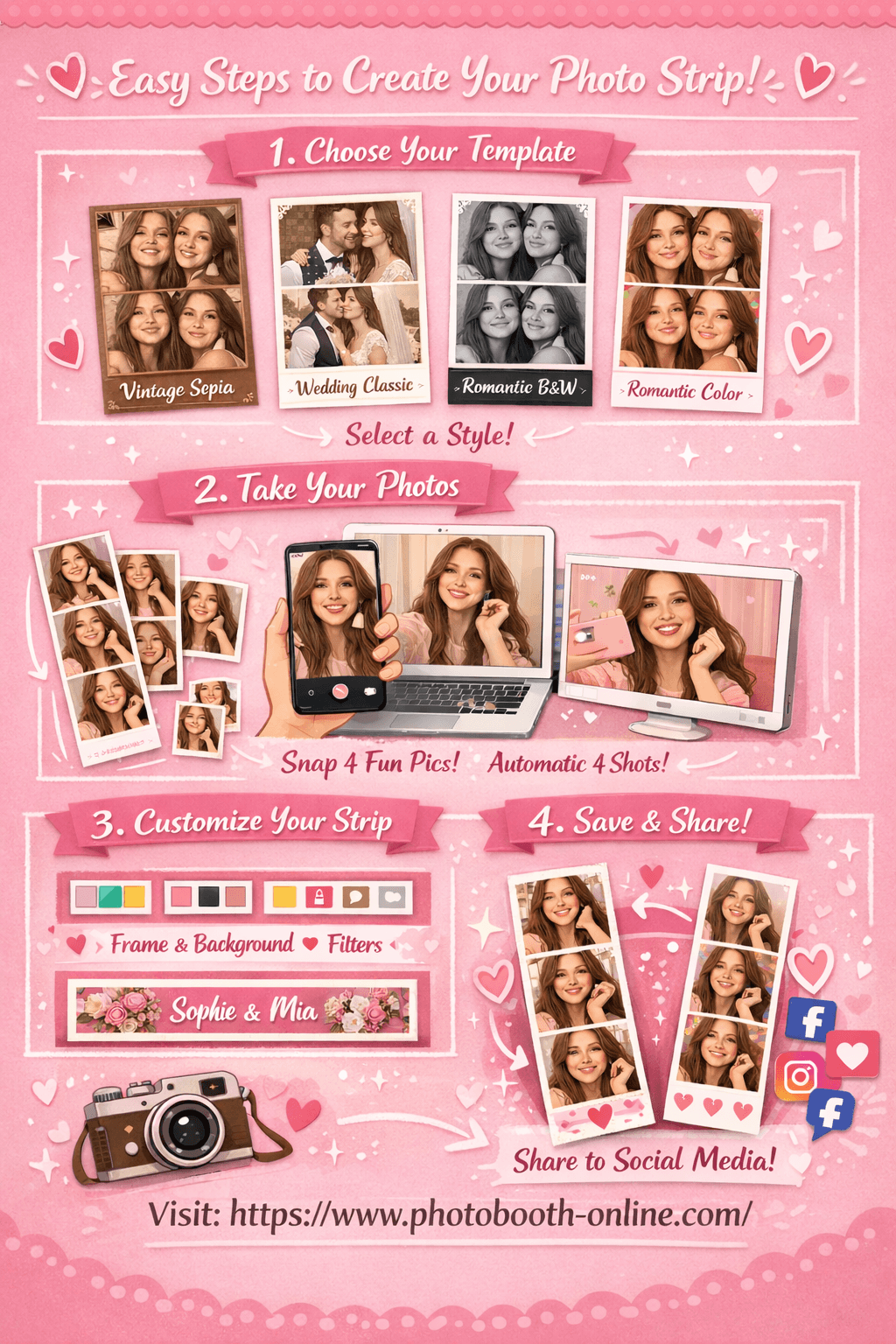
Setup on your side is minimal: choose a platform, pick a template, and share the link. Most tools, including browser-based ones, need little or no technical setup.
Virtual Photo Booth Software Compared
Bottom line: if you need a best virtual photo booth experience with zero friction, choose a virtual photo booth app or web tool that runs fully in the browser and doesn’t require downloads. For example, a wedding can use a free online photobooth so guests take strips from their phones without installing anything.
Pro Tip:
What Real Users Say About Virtual Photo Booths
"I tried every photobooth app and none of them work on mobile without lag." — r/photobooth discussion on Photo Booth Online
Many people want a virtual photo booth that works in the browser so there’s no app install. They also want instant strips and no account. Here’s how to get that: use a tool that keeps everything in the browser and avoids heavy uploads until the final image.
Another common ask is rear-camera support on phones so users can switch to the back camera for group shots. When evaluating virtual photo booth software, check whether it supports both front and back cameras on mobile.
Advanced Strategies
1. Pre-event link in multiple places
Don’t rely on one email. Put the virtual photo booth link in the invite, the event page, and a short reminder message an hour before. Add a QR code for in-person hybrid events so people can scan and shoot from their seats.
Here's exactly how to do it: Add the link to your calendar invite, event website, and one reminder (email or chat). Create a free QR code with the same URL and print or project it at the venue.
2. One branded template per event
Use a single frame or strip layout with your event name or logo. Guests get a consistent look and you get shareable, on-brand content. Custom virtual photo booth setups often offer uploadable logos and colors—use them so every output is recognizable.
Here is the step-by-step process: In your tool, create or select one template. Add your event name and primary color. Share the link; avoid offering too many layouts so the feed stays cohesive.
3. Prompt guests to share with a hashtag
Ask guests to post their strips with a dedicated hashtag. You can then collect and reshare the best shots and extend reach. Mention the hashtag in the thank-you screen or in a short line under the download button.
Let me show you the exact steps: Choose a short, unique hashtag. Add it to the final screen (“Share with #YourEvent2026”). After the event, search the hashtag and repost a few with permission.
Pro Tip:
Common Mistakes to Avoid
1. Using a tool that requires an app download. Many guests won’t install an app. Use a virtual photo booth that runs in the browser so everyone can join with one link. Fix: Switch to a web-only option; test “open in browser” on iOS and Android.
2. Skipping a mobile test. Layouts and camera behavior differ on phones. Fix: Open your link on at least one iPhone and one Android device before the event and fix any broken layout or permission issues.
3. Too many template choices. Offering dozens of frames slows decisions and fragments the look. Fix: Limit to one or two branded templates so the experience is fast and the output consistent.
4. Sharing the link only once. Guests miss emails or forget. Fix: Send the link in the invite, on the event page, and in a short reminder; add a QR code if people are in the same room.
FAQ
What is a virtual photo booth?
A virtual photo booth is an online tool that lets guests take photos in their browser, add frames or filters, and download or share the result without using a physical booth or installing an app.
Is there a free virtual photo booth?
Yes. Several virtual photo booth tools run directly in the browser and do not require guest signup. You share one link, and guests open it on their phone or laptop to join.
What is the best virtual photo booth for events?
The best virtual photo booth for events works on mobile and desktop without an app, supports custom branding, and is easy to join from one shared link. For many parties, a browser-based option is enough.
How do I set up a custom virtual photo booth?
Pick a platform that allows custom frames, logos, and colors. Upload your assets, generate your event link, and test it on a real phone before sharing it with guests.
Does a virtual photo booth work on phones?
Yes, if the tool is web-based and supports mobile cameras. You should still test on both iPhone and Android before the event so camera permissions and layouts behave correctly.
What virtual photo booth software do professionals use?
Professionals often use software that adds branding controls, online galleries, analytics, and higher-volume event features. For simpler events, browser-based tools are usually enough.
Can guests use the rear camera?
It depends on the product. Some virtual photo booth apps support switching between front and rear cameras on phones, while others do not, so it is worth testing before your event starts.
Do I need to install anything for a virtual photo booth?
Usually no. Hosts may use a setup dashboard, but guests typically only need the shared browser link to take, customize, and download their photos.
Ready to create your own photo strip? Try Photobooth Online free → — no download, no signup needed.