Classic White
Clean white paper and a generous caption border. Let the photograph and a few handwritten words do the talking.
Give your favorite moments a timeless instant-photo look. Take or upload photos, choose a frame, and add a little note of your own.
%22%2F%3E%3Crect%20width%3D%22396%22%20height%3D%22468%22%20rx%3D%222%22%20fill%3D%22url(%23edge)%22%2F%3E%3C%2Fsvg%3E)

%20rotate(-27)%22%3E%3Cpath%20d%3D%22M-37%20-11l7%20-3l8%202l8%20-3l10%202l9%20-2l7%202l8%20-2l7%203l5%20-1v24l-8%20-2l-7%202l-9%20-1l-8%202l-9%20-2l-9%202l-7%20-2l-12%202Z%22%20fill%3D%22%23c6ae7d%22%20fill-opacity%3D%22.6%22%2F%3E%3Cpath%20d%3D%22M-32%20-6h60m-58%204h58m-57%204h55m-60%204h60%22%20stroke%3D%22%23f7edc8%22%20stroke-width%3D%22.7%22%20stroke-opacity%3D%22.5%22%2F%3E%3C%2Fg%3E%3Cg%20transform%3D%22translate(362%20369)%20rotate(-34)%22%3E%3Cpath%20d%3D%22M-37%20-11l7%20-3l8%202l8%20-3l10%202l9%20-2l7%202l8%20-2l7%203l5%20-1v24l-8%20-2l-7%202l-9%20-1l-8%202l-9%20-2l-9%202l-7%20-2l-12%202Z%22%20fill%3D%22%23c6ae7d%22%20fill-opacity%3D%22.6%22%2F%3E%3Cpath%20d%3D%22M-32%20-6h60m-58%204h58m-57%204h55m-60%204h60%22%20stroke%3D%22%23f7edc8%22%20stroke-width%3D%22.7%22%20stroke-opacity%3D%22.5%22%2F%3E%3C%2Fg%3E%3C%2Fsvg%3E)

%22%20stroke%3D%22%23c45976%22%20fill%3D%22none%22%20stroke-width%3D%221.4%22%3E%3Cpath%20d%3D%22M0%200C-24%20-23%20-26%2015%200%200C24%20-23%2026%2015%200%200M0%200l-8%2013M0%200l8%2013%22%2F%3E%3C%2Fg%3E%3Cpath%20d%3D%22M356%20409c-17%20-14%20-19%208%200%2017c19%20-9%2017%20-31%200%20-17Z%22%20fill%3D%22none%22%20stroke%3D%22%23c45976%22%20stroke-width%3D%221.5%22%2F%3E%3C%2Fsvg%3E)
%22%2F%3E%3Crect%20width%3D%22396%22%20height%3D%22468%22%20rx%3D%222%22%20fill%3D%22url(%23edge)%22%2F%3E%3C%2Fsvg%3E)

Clean white borders, a vintage diary, soft pink notes, or a darker mood. Start with the Polaroid-style frame that feels like your memory.
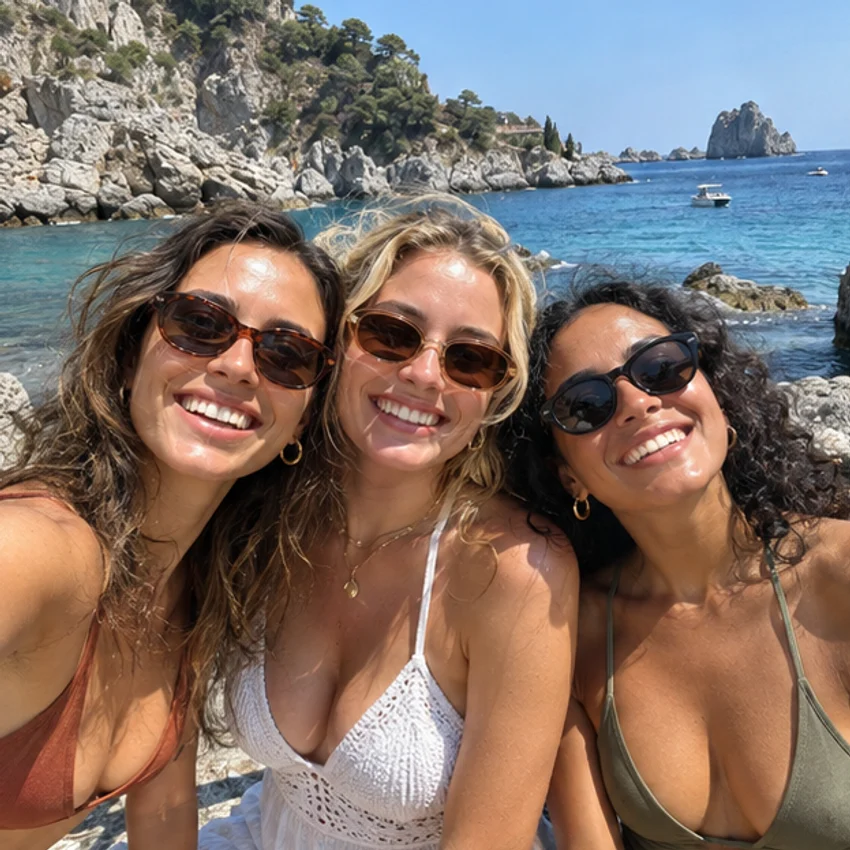
A photo frame gives a small moment its own place. Choose a picture with a story, then use the border and caption to make that story a little more personal.
A beach afternoon, a cafe stop, or a spontaneous selfie can become a small keepsake. Keep the colors natural and add the nickname your friends will recognize.
“same people, new adventures”
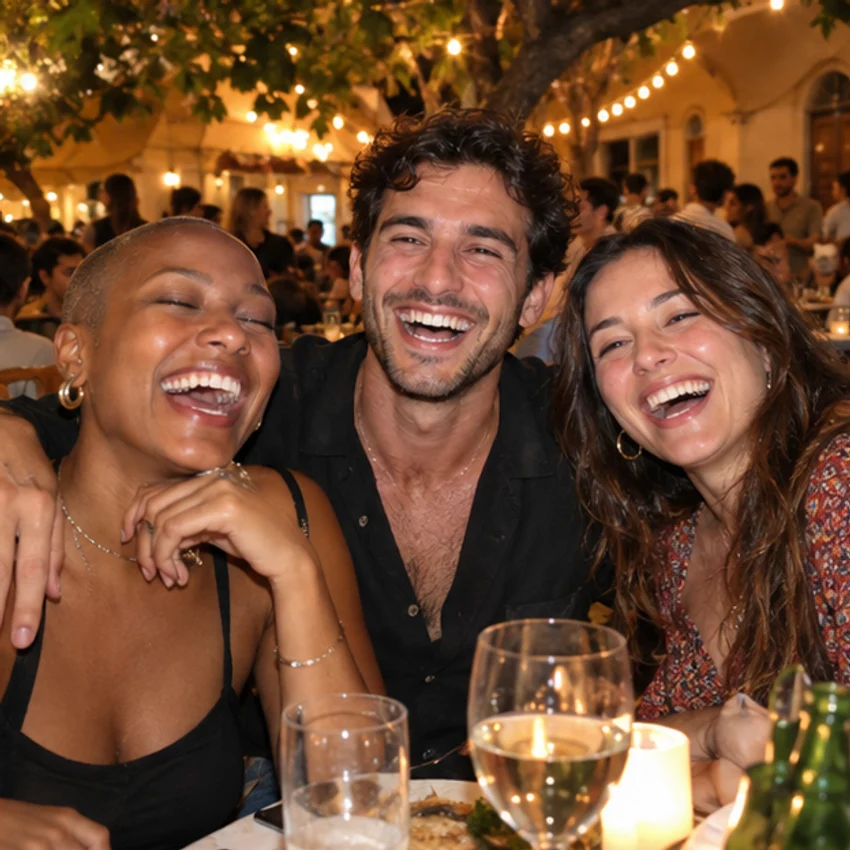
Choose a photograph that feels like the two of you. A blush frame and a short message make a thoughtful image to send on an anniversary or an ordinary good day.
“my favorite place is next to you”
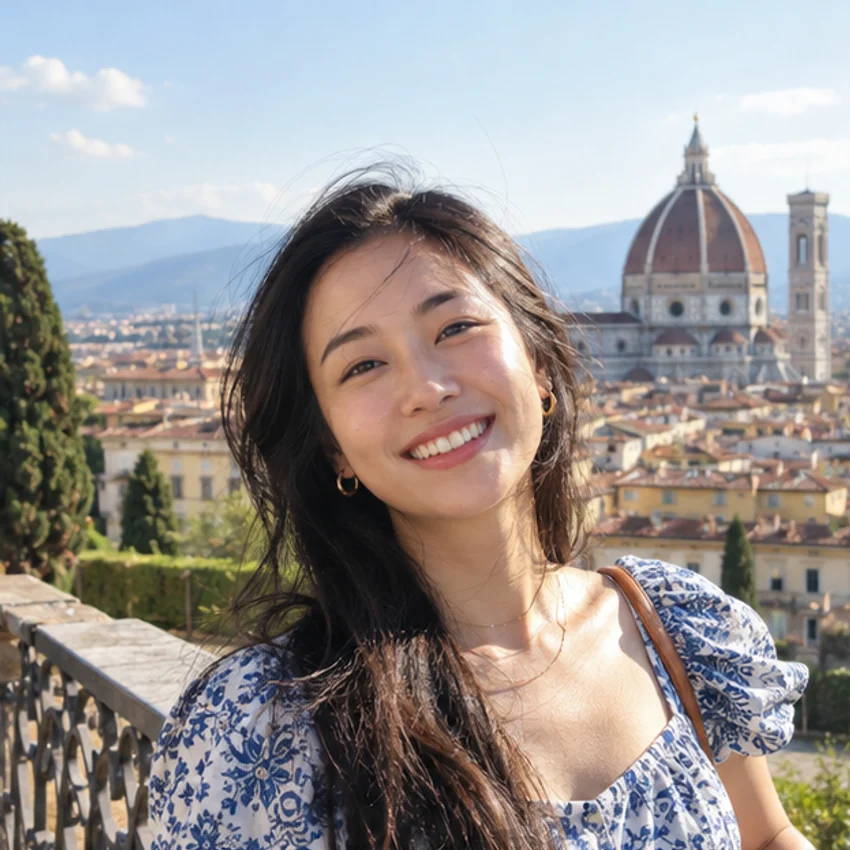
Pair a portrait with the name of the place or a detail you nearly forgot. A cafe name, a month, or a few words about the day can bring the photograph back to life.
“Florence, one sunny afternoon”
Go from a picture on your phone to a framed image you can save. The live preview shows the frame, photo, and caption together before you download.
Choose a template above to open Capture. Use the camera or upload a JPG, PNG, or WebP. The single-photo layout is selected for you; you can choose a strip or grid instead.
Review the crop, then continue to Customize. Keep the original colors or try a filter. Edit the footer text to add your own handwritten caption, and use stickers if they fit the moment.
Save the framed photo as a PNG. On a phone, follow the save-image prompt if one appears. Use Retake Photos whenever you want to replace the picture and try again.
The familiar instant-photo effect comes from the contrast between the photograph and the paper around it. Narrow edges give the picture room, while a deeper bottom border leaves space for a note. Classic White keeps that treatment simple; the other frames add paper color, tape, or small decorative details.
A Polaroid filter changes a different part of the result: the photograph itself. Try Fade for softer contrast, Warm for a brighter color treatment, or Grayscale for black and white. You can also leave the photo untouched. These are digital effects applied to your image.

Original photo
Original + frame
A caption does not have to explain everything. Write where you were, who made you laugh, or the words you would put on the back of a photograph. A short line stays readable and leaves the image as the main focus.
Try an example below, then replace it with your own words in the editor. You can type a name or date as part of the caption; keep longer stories for the message you send with the image.
Start with a single square photo for the classic instant-photo feel. If you want to tell a longer story, choose a strip or grid in Capture. A sequence of changing expressions works well in a strip; a grid brings related pictures into one composition.
In multi-photo layouts, the frame surrounds the whole arrangement and the caption sits below it. Use that shared space for a title that connects the images, such as a trip name or a message to your friends.
Looking for perforated film edges instead? Explore the Film Strip Maker, or browse our photo booth template guide.
%22%2F%3E%3Crect%20width%3D%22578%22%20height%3D%22500%22%20rx%3D%222%22%20fill%3D%22url(%23edge)%22%2F%3E%3C%2Fsvg%3E)
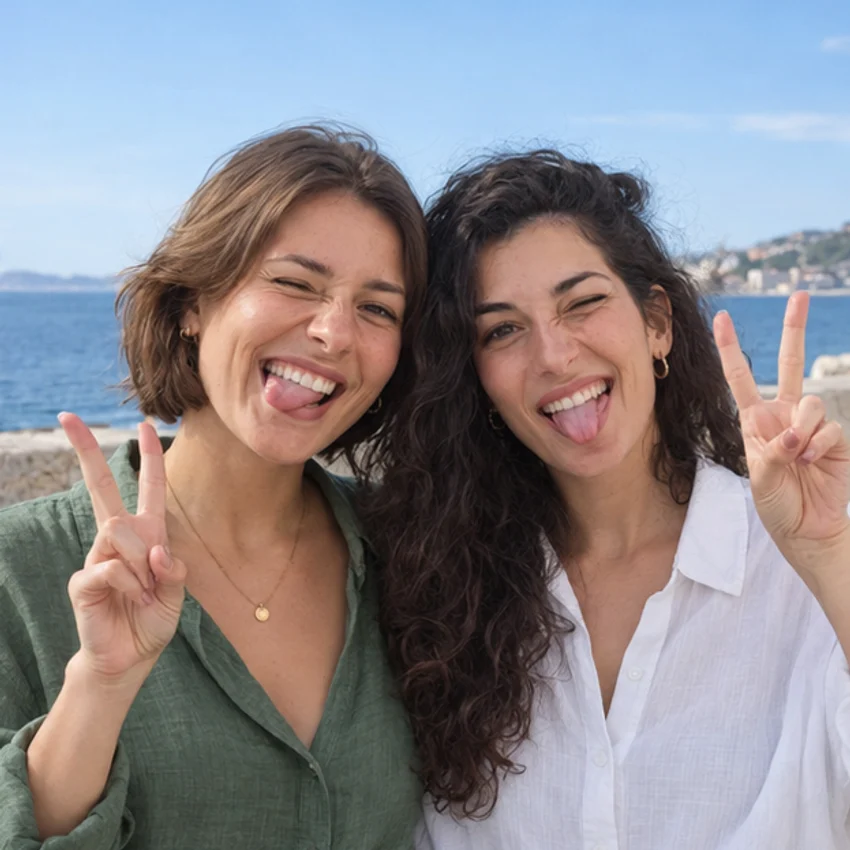



The square crop is part of the instant-photo look. Before you add a border, check the space around the subject and what will still be visible after cropping.
Keep faces and hands away from the outer edges. A wide group photo may lose people at the sides when cropped to a square, so reposition it in the crop tool or use a different picture.
Face a window or find open shade for clear expressions. Strong backlighting can hide facial details. Start with a well-lit photo before adding a softer or warmer effect.
A small laugh or a familiar gesture often feels more personal than a perfect pose. For a strip or grid, change your expression between shots so each image adds something.
Choose a frame on this page, open Capture, and upload your photo or take a new one. The default 1 × 1 layout makes a single square photo with an instant-photo border. Continue to Customize to change the filter, add your caption, and download a PNG.
Yes. The templates, camera, uploads, customization, and PNG download are free to use without signing up.
Yes. Upload a JPG, PNG, or WebP from your device. If the picture needs a substantial crop, the crop tool lets you position the area to keep before you continue.
Yes. In Customize, edit the footer text to replace the sample caption with your own name, date, place, or short message. These templates display that text in a handwritten style. A short line stays easier to read; long captions are reduced to fit.
A frame changes the border around your photo. A filter changes the colors and contrast inside it. You can keep the original photo colors with a white border, or choose an available effect such as Warm, Fade, Sepia, or Grayscale.
Yes. Choose another layout in Capture, including strips and grids. The selected frame surrounds the whole composition, with one shared caption below. It does not put a separate caption under every picture.
The default single-photo layout exports a 792 × 936 pixel PNG, including its frame. Other layouts have different dimensions. This is a digital design, not a file preset for a particular instant-film cartridge or physical print size.
Yes. Use your browser to upload from your phone or take a new photo. The mobile save view may ask you to long-press the finished image. No separate app is needed.
Capture, editing, and PNG generation happen in your browser. Photos may be kept in browser storage so you can continue between steps. If you choose an online sharing or share-link feature, the finished image is uploaded to create that shareable result.
No. The tool places your photo in a frame and applies the edits you choose. It does not generate new people or replace faces. The sample photos on this landing page are illustrations of possible results.
Choose a picture, add your words, and make an instant-photo keepsake you can save and send.
Take a new photo or start with one you already love.